
There are many options and apps available for generating the one-time code you need to login to your Account when two-factor authentication is enabled.
In this page we are going to detail the process of how to setup and use “Google Authenticator” mobile app to work with two-factor authentication on our Site. The process to get started is very similar and easy for all apps: scan the QR code once and the app starts generating the one-time code you need to login to your website. Below is the list of 2FA apps which can be used. You can get all the apps from “Google Play Store”.
- Authy
- Google Authenticator
- Microsoft Authenticator
- Duo Security
- Lastpass
- FreeOTP
- Okta Verify
We are going to use “Google Authenticator”
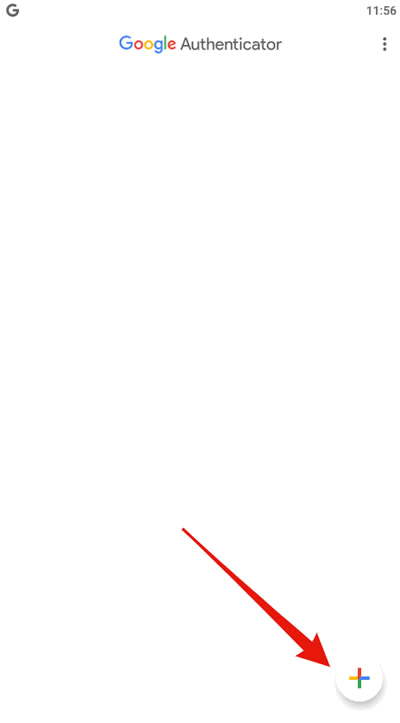
Being one of the most popular authentication apps around, Google Authenticator simplifies the process of adding a new account to your app. To begin tap the “+” icon in the app home screen in the lower right corner of the screen.
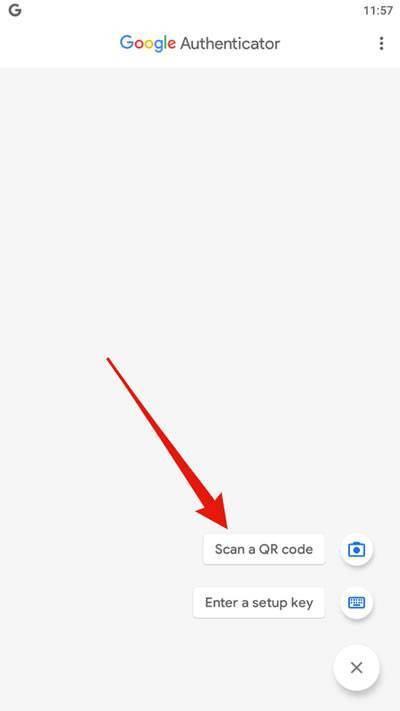
Once prompted, select to scan the QR code or enter the code manually. Scan the code or enter the code provided in our setup wizard.
When ready. you will be redirected back to the home screen, where you can see all your 2FA codes. The new account will be at the bottom of the list should you have other accounts on the app.
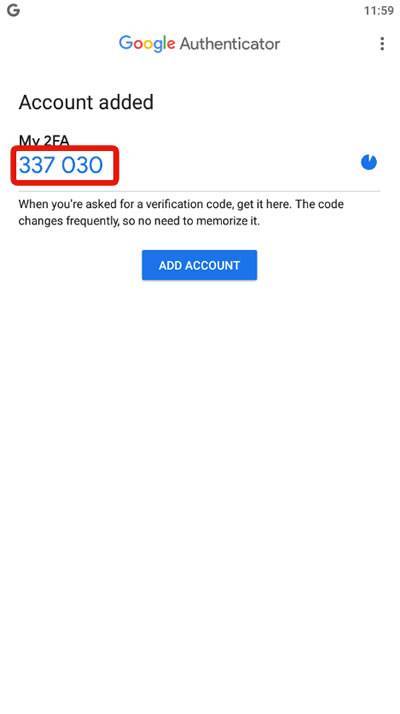
Now you can now continue the 2FA setup wizard, so head to the next step and simply enter the code into the “Authentication Code” field. Once submitted, the plugin verifies your code and if all is well it notifies you.
That’s it….